Install
Install YUI from a release build, with a coding agent, or from source.
From a release build. Each release on the Releases page carries a build:
.dmgfor macOS on Apple Silicon, and.msior-setup.exefor Windows x64. The macOS build is signed ad hoc, so allow the first launch once under System Settings → Privacy & Security → Open Anyway.With a coding agent. Paste this into Claude Code, Codex, OpenCode, or Cursor. The agent follows Install with a coding agent.
textInstall https://github.com/yw0nam/YUI following https://raw.githubusercontent.com/yw0nam/YUI/main/docs/guide/install.mdFrom source. Building needs Node.js with pnpm and Rust with the Tauri v2 toolchain. Then run:
bashpnpm install pnpm tauri dev # transparent desktop-pet window on port 1420 (recommended) pnpm tauri:dev # same window on an auto-picked free port, so worktrees run side by side pnpm dev # browser-only, no Tauri shell pnpm build # production build
First launch
With no chat connected, she says so, and Connect opens Quick start. Quick start gets you from a free Google Gemini key to the first greeting.
Load your own VRM model
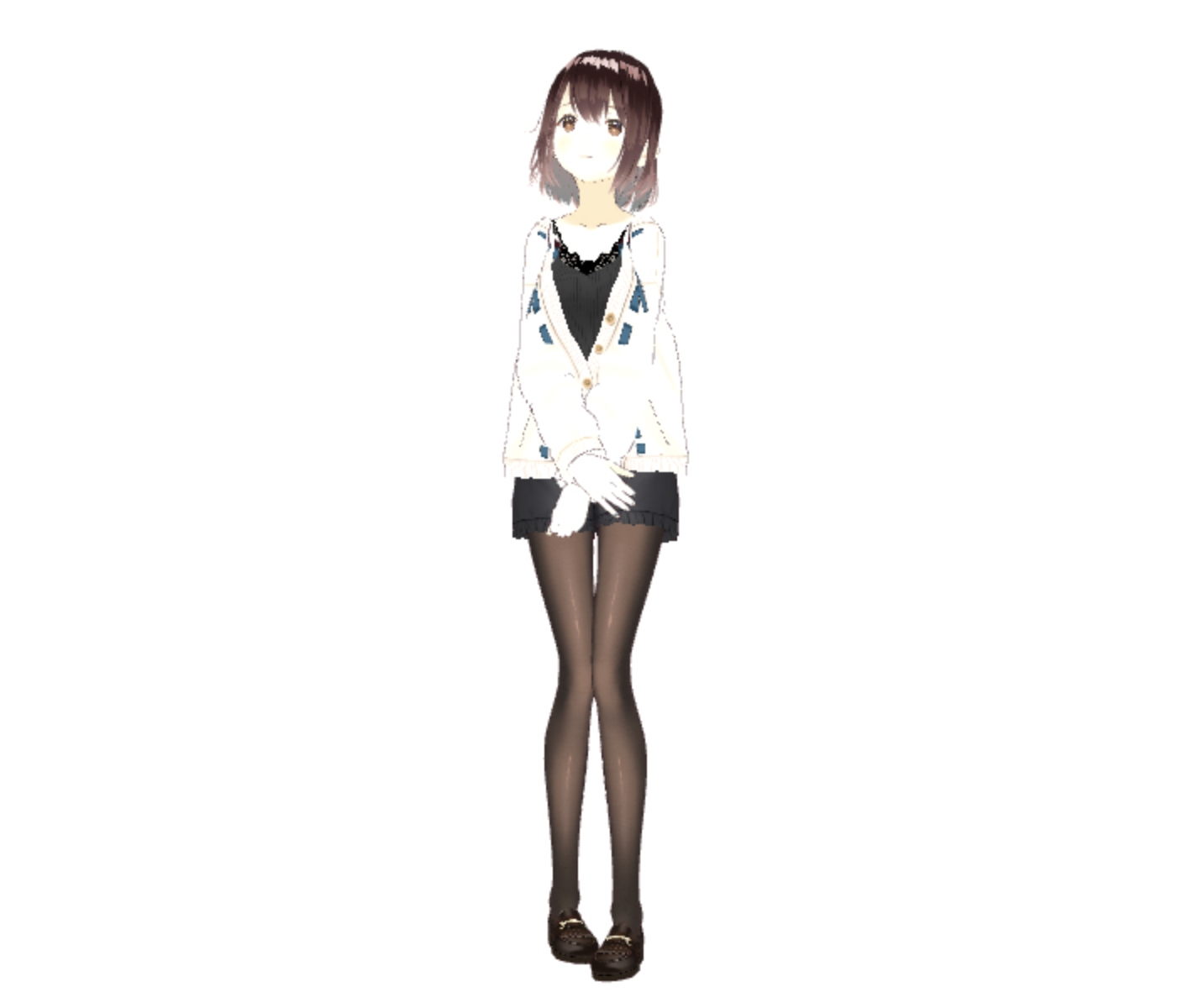
One VRM model ships with the app: AvatarSample_A.vrm. To use another VRM 1.0 or 0.x model, open the Body page and use Add from file… under VRM.
Find models on VRoid Hub sits below it. It opens VRoid's official sample models in your browser. Download a .vrm file there and add it the same way.
Next
- How YUI works: the body, the brain and one turn.
- Connect a backend: one OpenAI key, a local model, or an agent.
- Voice in and out: TTS and STT.