Voice in and out
Speech out and speech in are two separate services. Both are optional.
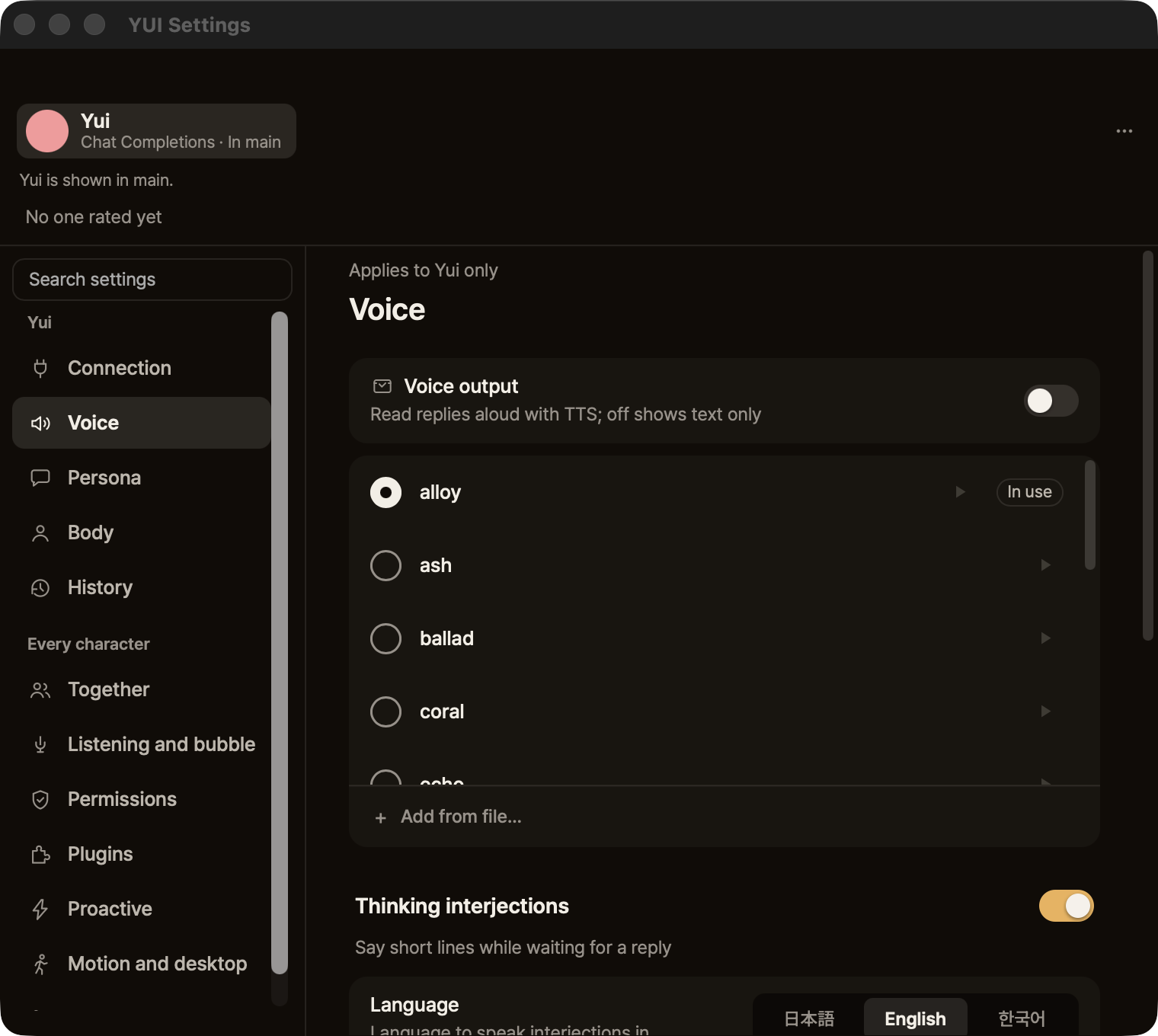
Speak
- On Connection, pick a Provider in the TTS section: Irodori, OpenAI, or Fish Audio. The line under the section says whether the TTS server answers. Reconnect checks again.
- Enter the TTS API key if the service needs one.
- On Voice, turn on Voice output and pick a voice from the list. Preview plays a sample for a voice with a reference clip.
Quick start's voice step
Once Quick start has connected, the voice step under its done line takes a Fish Audio key in place of steps 1 and 2.
- Open key page opens Fish Audio's API key page in your browser.
- Turn on voice checks the pasted key with a voice list read. Only a key that Fish Audio accepts is written: the Fish Audio provider, its URL and model, the key, and TTS on.
- The Default voice for your app language joins the voice list and is selected. It is picked once, when voice is turned on. A later language change keeps it.
- Maybe later hides the step until the panel is rebuilt. Voice can still be turned on from the Voice page.
- With a TTS server already set, the step shows a line that voice is on instead.
When a line cannot be spoken
If part of her reply cannot be spoken (a deleted voice, an expired key, or a quota limit), the speech bubble shows Can't speak with this voice · Choose another under that reply once it ends.
It appears once per pet window run, and its action opens the Voice page.
A thinking phrase or the greeting that cannot be spoken shows nothing.
A reply that fails while the unified chat window shows, which hides the pet bubble, does not use up the action either. The next failed reply shows it.
When the voice server does not answer at all, the bubble shows Voice server not connected · Reconnect under that reply instead, once until the server answers again.
Reconnect checks the server again without replaying the reply. The next reply also checks it by itself.
Can't speak with this voice stays for a server that answered with an error.
Listen
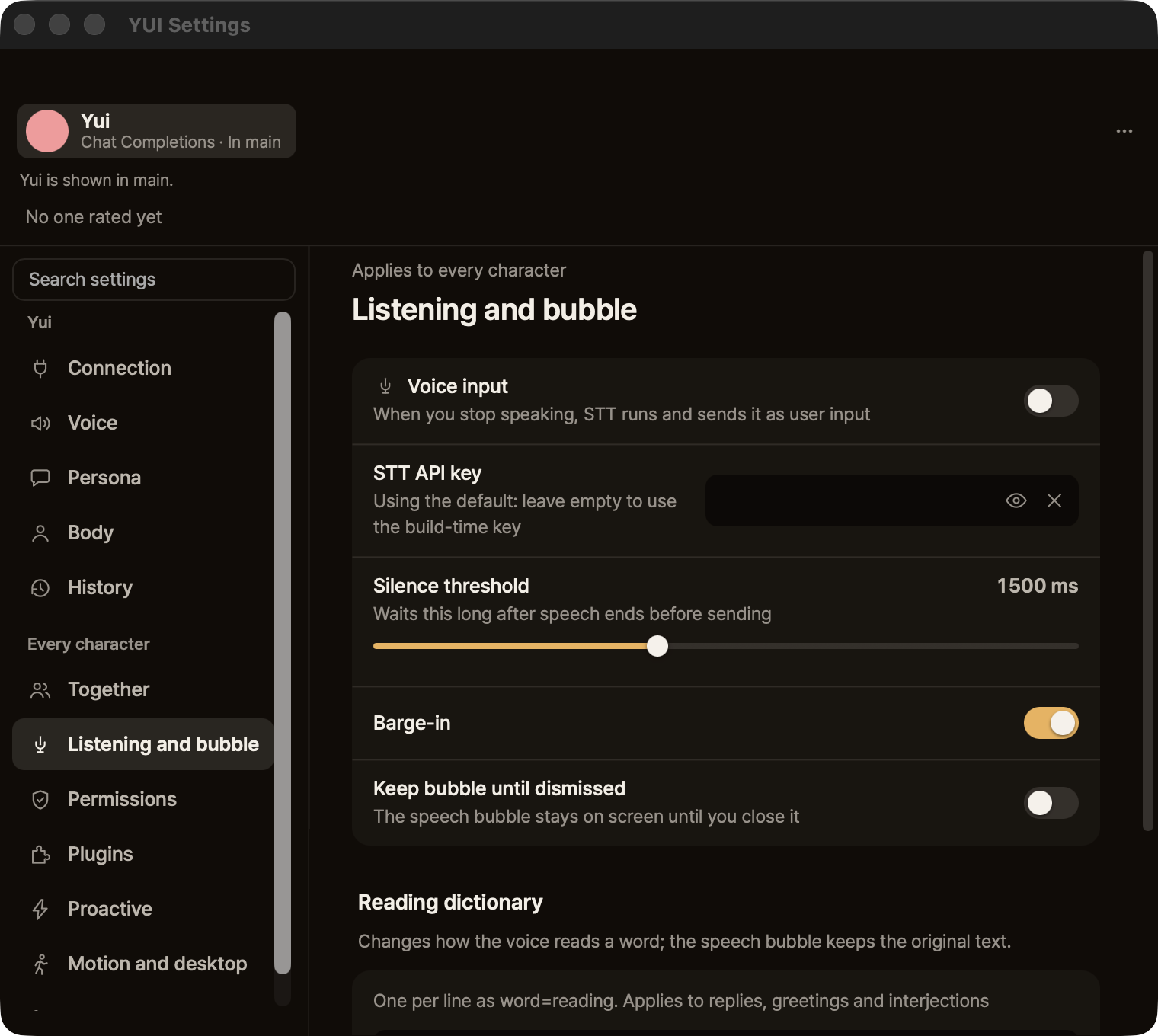
- On Connection, enter the Speech recognition (STT) server URL. Any OpenAI-compatible transcription server works. The line under the section says whether the STT server answers. Reconnect checks again.
- On Listening and bubble, turn on Voice input, and enter the STT API key if the server needs one.
- Speak. When you stop, the audio goes to STT and arrives as your message.
Providers
| Provider | Kind | Needs |
|---|---|---|
| Irodori | TTS | An Irodori TTS server on port 8088, and the model irodori-tts |
| OpenAI | TTS | An OpenAI key, and the model gpt-4o-mini-tts |
| Fish Audio | TTS | A Fish Audio key, and the model s2.1-pro-free |
| OpenAI-compatible | STT | A server URL that includes /v1, plus a model such as whisper-large-v3-turbo on a hosted API |
Tips
- Irodori serves Japanese only, so ask your backend to answer in Japanese.
- OpenAI lists its 13 built-in voices. Import and delete are off for that provider.
- A voice from Fish Audio's public library works when you paste its voice id or page URL under the list.
Go deeper
- Configuration: every voice key, and what each provider sends.
- TTS Emotion: the
emotion_textvocabulary.